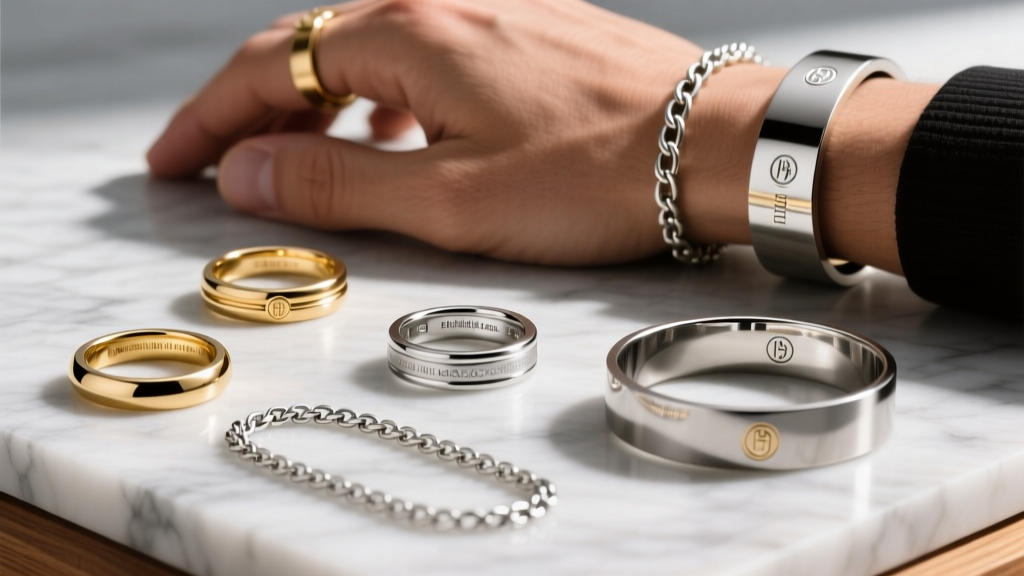
Troubleshooting Sims 4 Mods Men's Jewelry Top Layering Issues
Fix clipping and alpha sorting issues with Sims 4 mods men's jewelry top combinations using Sims 4 Studio, Blender, and precise CAS cut numbers.
The Rise of Digital Fashion Prototyping
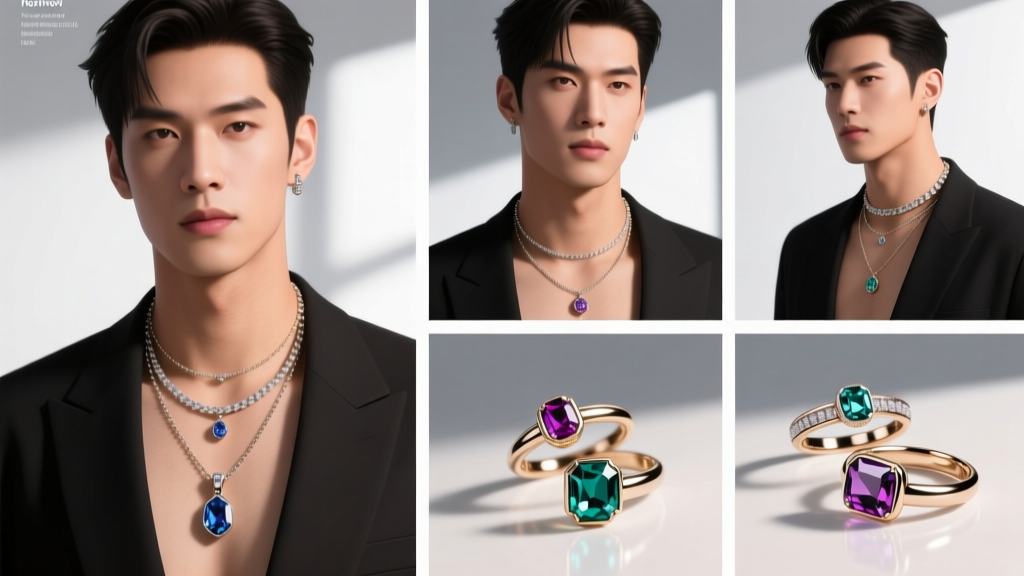
In the modern era of virtual styling and digital fashion influencing, The Sims 4 has evolved far beyond a simple life simulation game. For digital stylists, 3D asset creators, and virtual influencers, the game's Create-A-Sim (CAS) engine serves as a powerful prototyping tool for visualizing men's streetwear, high fashion, and intricate jewelry layering. However, bridging the gap between physical styling rules and 3D game engine limitations presents unique technical hurdles. When sourcing or creating custom content (CC), troubleshooting sims 4 mods men's jewelry top layering conflicts is one of the most common and frustrating challenges virtual stylists face.
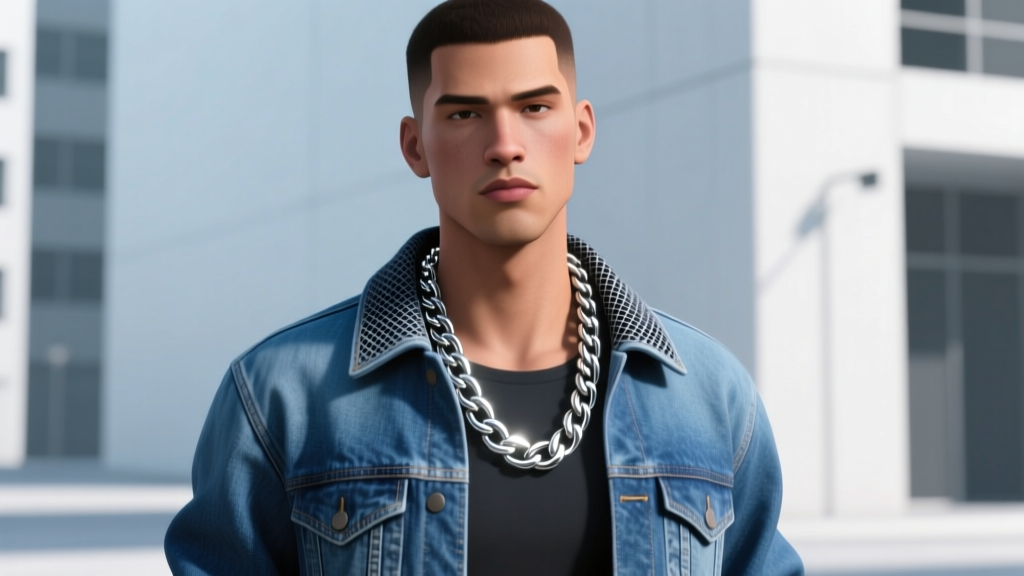
Whether you are trying to layer a chunky 18k gold Cuban link chain over a vintage denim jacket or testing the drape of a delicate silver pendant against a ribbed turtleneck, the game engine often struggles to interpret the physical boundaries of overlapping meshes. This results in 'clipping' (where meshes intersect unnaturally) or 'alpha sorting' errors (where transparent textures bleed through solid fabrics). In this comprehensive troubleshooting guide, we will break down the technical anatomy of CAS layering, provide exact cut-number adjustments in Sims 4 Studio, and explore how digital mesh troubleshooting directly informs real-world men's jewelry styling principles.
Understanding the Anatomy of Virtual Clipping
Before diving into the software fixes, it is crucial to understand why clipping occurs when combining necklaces and shirts. In The Sims 4, every clothing item and accessory is a separate 3D mesh bound to a digital skeleton. The game engine uses bounding boxes and vertex weight painting to determine how a mesh moves and deforms when the Sim animates.
Clipping happens when the Z-axis coordinates of the jewelry mesh occupy the same digital space as the top mesh. Unlike the physical world, where a metal chain naturally rests on top of cotton fabric due to gravity and material density, the game engine requires explicit instructions on which mesh should render in front of the other. If a modder has not properly adjusted the 'Cut' geometry or the 'Sort Priority' of the CAS part, the game will default to rendering the base body or the top layer over the accessory, causing the chain to disappear into the collarbone or poke aggressively through the shirt fabric.
Table: CAS Cut Numbers & Sort Priorities
To resolve these conflicts, you must understand how the game categorizes layering. Below is a reference table for standard CAS part configurations:
| CAS Part Category | Standard Cut Number | Sort Priority | Common Conflict |
|---|---|---|---|
| Tops (T-Shirt/Crew) | 0x0000 (0) | 0 | Chokers, Short Chains |
| Tops (Button-up) | 0x0000 (0) | 0 | Pendants, Layered Chains |
| Necklace | 0x0000 (0) | 1 | High-collar tops, Hoodies |
| Accessories | Varies | 2 | Jackets, Scarves |
Alpha Sorting Nightmares: Transparency Bleed on Chains
While mesh clipping is a geometry issue, alpha sorting is a texture rendering issue. Many high-quality sims 4 mods men's jewelry top combinations fail because of how the game handles alpha channels—the masks that tell the engine which parts of a texture should be transparent. Intricate jewelry, such as chain links with gaps between them or pendants with filigree cutouts, rely heavily on alpha masks.
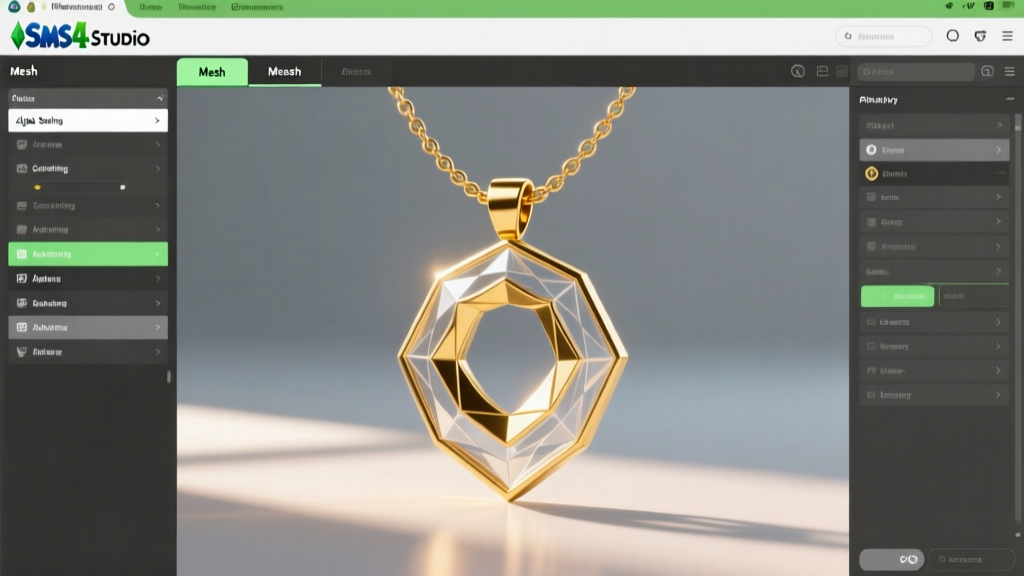
When a Sim wears an alpha-heavy necklace over a shirt that also utilizes alpha channels (such as a lace top or a shirt with transparent mesh panels), the game engine experiences 'Z-fighting.' It cannot determine which transparent layer is closer to the camera, resulting in a flickering, glitchy texture where the skin or background shows through the metal. According to the Sims 4 Studio Alpha Sorting Guide, the game supports up to four distinct alpha layers, but jewelry must be explicitly assigned to the correct layer to render over clothing.
Fixing Alpha Bleed in Sims 4 Studio
- Extract the Mesh: Open the conflicting necklace .package file in Sims 4 Studio (S4S).
- Check the Material Flags: Navigate to the 'Warehouse' tab and locate the Material Definition (MATD). Ensure that the alpha sorting layer is set correctly. For jewelry meant to sit over clothing, the sort priority in the CAS part header must be higher than the top's priority.
- Adjust the Cut Geometry: In the 'Mesh' tab, ensure the necklace's cut group is set to blend seamlessly with the neckline of standard tops. If the necklace uses an alpha mask, consider converting the links to solid geometry in Blender to eliminate the need for transparency entirely, a technique highly recommended by the ModTheSims Meshing Forum for high-poly jewelry.
Step-by-Step Troubleshooting in Blender 3.6+
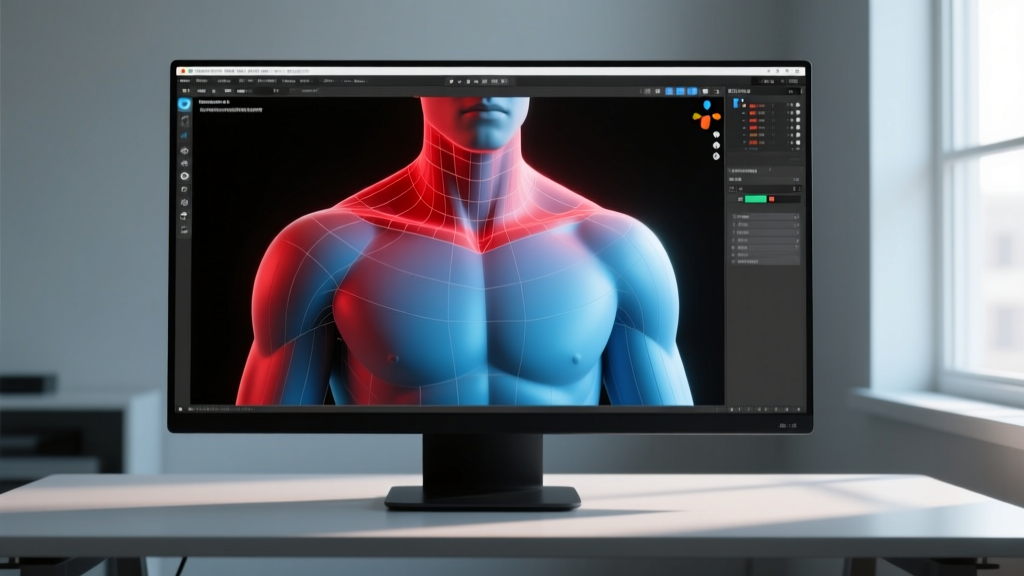
When S4S adjustments aren't enough, you must modify the actual 3D geometry using Blender. This is where digital troubleshooting mirrors the precision required in physical jewelry manufacturing.
1. Adjusting Vertex Weight Painting
If a necklace clips through a shirt only when the Sim moves its arms or turns its head, the issue is weight painting. The necklace mesh must be bound to the correct skeletal bones (usually `b__CAS_Necklace__` or the collarbone bones). In Blender's Weight Paint mode, ensure that the vertices of the chain do not share conflicting weight gradients with the shirt's collar. Hard-edge weight painting (using values of exactly 1.0 or 0.0) prevents the chain from warping into the shirt fabric during animation.
2. Modifying the Bounding Box
Physical chains have a specific drop length. A 20-inch chain sits on the sternum, while an 18-inch chain rests on the collarbone. If your digital chain is modeled at an 18-inch length but is being paired with a thick, high-collared streetwear jacket, clipping is inevitable. Scale the Y-axis of the pendant or chain in Blender to simulate a 22-inch drop, allowing it to rest cleanly below the jacket's zipper or collar bounding box.
Bridging Digital Prototypes to Physical Styling
The technical constraints of The Sims 4 engine inadvertently teach valuable lessons about real-world men's jewelry styling. When you are forced to troubleshoot why a digital chain clips through a digital crew-neck t-shirt, you are actually learning the physical rules of proportion and layering.
- The Crew Neck Rule: In both digital and physical styling, a chain that sits exactly on the collarbone (16-18 inches) will clash with the ribbing of a crew-neck shirt. Opt for 20-24 inch chains that drape below the collar, eliminating visual (and digital) tension.
- The Spread Collar Advantage: Button-up shirts with spread collars create a natural 'V' shape. This provides a dedicated negative space for lapel pins, tie bars, or shorter pendant necklaces (18 inches) to sit without competing with the fabric's geometry.
- Material Weight vs. Fabric Weight: Just as high-poly, chunky meshes require higher sort priorities to render over thick digital jackets, physical heavy-gauge chains (like 10mm Cuban links) require heavy-weight fabrics (like denim or leather) to balance the visual scale. Pairing a heavy chain with a flimsy silk or thin cotton top causes physical sagging, mirroring digital mesh distortion.
Final Polish: Testing in CAS and Live Mode
Never finalize a custom content fix based solely on the static CAS environment. The true test of any sims 4 mods men's jewelry top combination is dynamic movement. Load your Sim into Live Mode, place them in a well-lit environment, and cycle through various animations—sitting at a cafe table, jogging, or leaning against a wall. Observe how the chain reacts to the shirt's physics. By combining precise software troubleshooting with a deep understanding of physical jewelry proportions, virtual stylists can achieve flawless, hyper-realistic layering that pushes the boundaries of digital fashion.