Maintaining Your Jewelry Making Design Software & File Assets
Learn essential digital care, maintenance, and cleaning tips for your jewelry making design software, from CAD mesh repair to asset library organization.

The Hidden Cost of Digital Clutter in Jewelry CAD
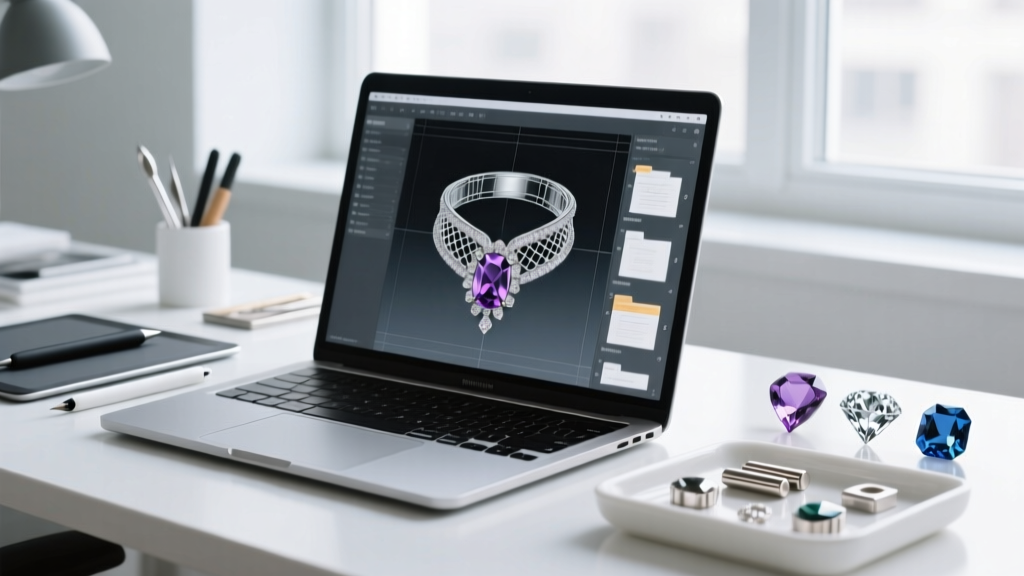
When jewelers think of care and maintenance, they usually picture ultrasonic cleaners, polishing compounds, and oiling rolling mills. However, as the industry shifts heavily toward digital fabrication, maintaining your jewelry making design software and its underlying file architecture is just as critical as cleaning your physical workbench. Digital clutter, corrupted meshes, and bloated render caches can lead to software crashes, failed 3D prints, and lost proprietary designs.
In 2026, modern CAD programs like MatrixGold, Rhino 3D, and ZBrush are more powerful than ever, but they are also highly susceptible to 'file bloat.' Every time you perform a boolean operation, undo a fillet, or import a high-poly gemstone mesh, the software records that data. Over time, a simple solitaire ring file can balloon from 2MB to over 50MB, causing viewport lag and rendering artifacts. The first step in digital jewelry maintenance is routine purging. In Rhino, utilizing the Purge command removes unused layers, blocks, materials, and linetypes, stripping the file down to its essential geometry and drastically improving software performance.
Cleaning and Repairing 3D Meshes for 3D Printing
The most crucial 'cleaning' task in digital jewelry making is preparing a 3D mesh for casting. Whether you are using a Solidscape wax printer or a Formlabs SLA printer with Castable Wax 40 resin, your STL or OBJ file must be perfectly 'watertight.' A watertight mesh is a closed polyhedron with no holes, no intersecting faces, and no non-manifold edges.
Fixing Non-Manifold Edges and Naked Vertices
A non-manifold edge occurs when more than two faces share a single edge, or when a face folds back onto itself. If you send a non-manifold ring shank to a slicer, the software will misinterpret the inside and outside of the ring, resulting in a hollow print that traps uncured resin or a completely failed print bed. To clean your meshes, you must regularly audit them using built-in diagnostic tools.
In Rhino, the ShowEdges and SelNakedMeshEdgePoints commands are your primary diagnostic tools. These commands highlight 'naked' edges—boundaries where the mesh is torn or incomplete. For automated cleaning, the MeshRepair command attempts to fill holes and unify normals. For more complex organic jewelry pieces, such as carved signet rings or intricate floral motifs modeled in ZBrush, exporting the file to Autodesk Meshmixer to run the 'Inspector' and 'Make Solid' tools is an industry-standard maintenance practice to guarantee a flawless print.
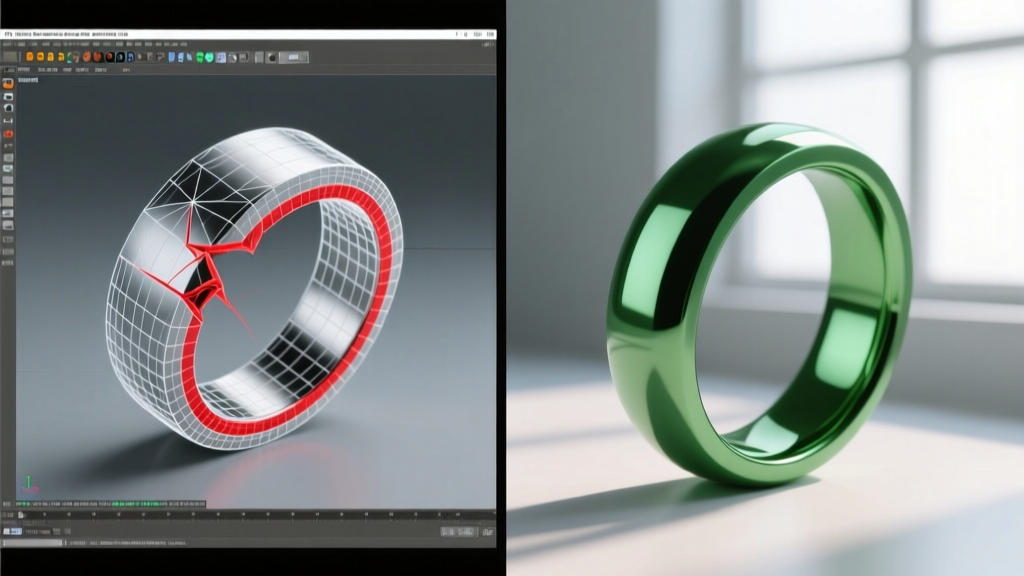
According to the Formlabs Castable Materials Guide, ensuring your mesh is entirely closed and free of intersecting geometry is the single most important factor in achieving a successful burnout and clean metal cast. Ignoring mesh hygiene leads to trapped ash and porosity in your final gold or platinum pieces.
Maintaining Your Gemstone and Component Asset Libraries
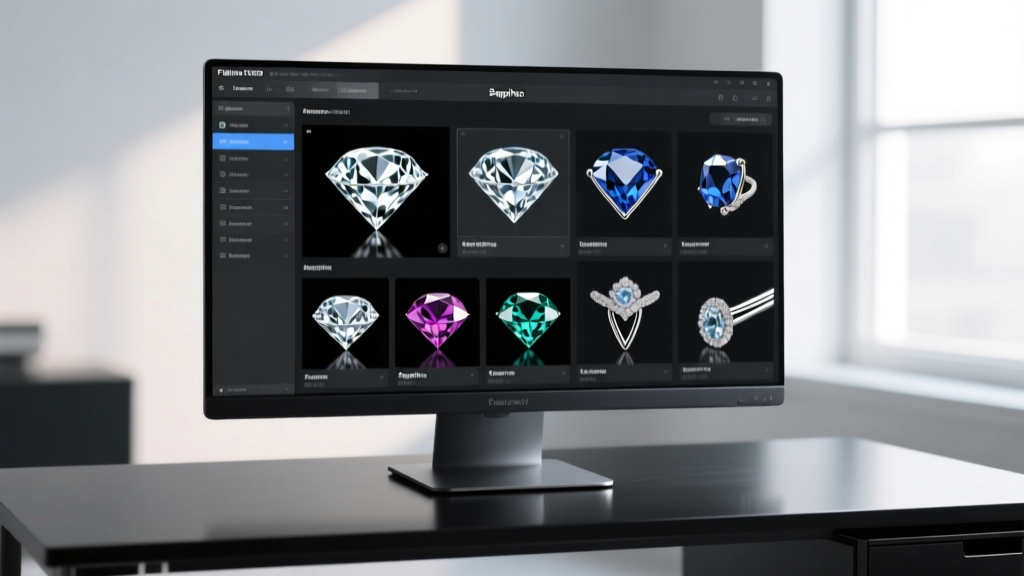
A well-maintained jewelry making design software environment relies on a meticulously organized asset library. Over the years, jewelers accumulate thousands of 3D components: V-prongs, double-claw settings, gallery wires, and gemstone meshes. If left unmanaged, these libraries become a tangled mess of duplicate files, improperly scaled stones, and heavy, unoptimized meshes that crash your viewport.
To maintain your digital inventory, implement a strict taxonomy based on the Gemological Institute of America (GIA) standard proportions and cutting styles. Organize your folders hierarchically: Material Type > Component > Sub-type. For example: Gemstones > Round Brilliant > 1.00ct - 1.50ct.
| File Format | Best Use Case in Jewelry CAD | Maintenance / Cleaning Tip |
|---|---|---|
| .3dm / .zpr | Master files, parametric history, high-poly rendering | Run 'Purge' monthly; delete unused construction geometry and hidden layers. |
| .STL | 3D printing, CAM milling, wax model generation | Ensure mesh is watertight; reduce polygon count on flat surfaces to save file space. |
| .OBJ | Importing sculpted organic elements from ZBrush/Blender | Always re-center the pivot point to the world origin (0,0,0) before saving to your library. |
| .3ds | Legacy gemstone libraries and older CAD components | Convert to .3dm or .STL; .3ds files often lose material assignments and scale upon import. |
Optimizing Viewport Performance
High-resolution gemstone meshes (often exceeding 50,000 polygons per stone) will bring your jewelry making design software to a crawl when designing a multi-stone tennis bracelet or an elaborate pavé halo. To maintain software speed, keep two versions of your gemstone library: a 'Render' folder containing high-poly stones with smooth normals, and a 'Viewport' folder containing low-poly proxy meshes. Swap to the high-poly assets only when you are ready to execute the final V-Ray or KeyShot render.
Software Cache, Render Engines, and System Hygiene
The physical hardware and the rendering engines powering your jewelry making design software require their own maintenance schedules. Render engines like KeyShot and V-Ray generate massive cache files to store lighting calculations and material previews. Over a few months, these caches can consume hundreds of gigabytes of SSD space, slowing down your system's read/write speeds and causing thermal throttling during long rendering sessions.
Follow this strict digital hygiene checklist to keep your workstation optimized:
- Weekly: Clear your render engine's cache directory. In KeyShot, navigate to Edit > Preferences > Folders and clear the cache. Empty your OS temporary files folder.
- Monthly: Update your GPU drivers. Crucially, if you use an NVIDIA card, ensure you are using the NVIDIA Studio Driver rather than the Game Ready Driver. Studio drivers are specifically optimized for CAD stability and rendering workloads in Rhino and MatrixGold.
- Quarterly: Audit your software plugins. Disable or uninstall unused scripts, render exporters, or CAM toolpath generators that load into the software's RAM upon startup.
Backup Protocols for Proprietary Jewelry Designs
Your digital files are the lifeblood of your jewelry business. Losing a custom engagement ring CAD file to a corrupted hard drive or a ransomware attack is a catastrophic failure of digital maintenance. Relying solely on a single external hard drive is not a maintenance strategy; it is a liability.
Implement the 3-2-1 Backup Rule for all your jewelry making design software files: Keep 3 total copies of your data, store them on 2 different types of media (e.g., your workstation's internal NVMe SSD and a local NAS like a Synology DiskStation), and keep 1 copy offsite in a secure cloud environment (such as Backblaze B2 or AWS S3). Furthermore, utilize version control naming conventions. Never name a file CustomRing_Final.stl. Instead, use ClientName_RingStyle_v1.2_2026-10-24.stl to maintain a clean, traceable history of design iterations without overwriting previous, potentially superior drafts.
Conclusion
Treating your digital workspace with the same respect and rigorous maintenance as your physical jeweler's bench is non-negotiable in modern jewelry fabrication. By routinely purging file bloat, repairing non-manifold meshes, organizing your component libraries, and managing your render caches, you ensure that your jewelry making design software operates at peak efficiency. Clean digital habits translate directly to cleaner 3D prints, smoother castings, and a more profitable, frustration-free jewelry design practice.